Windows App

Windows App

Microsoft Corporation
★★★★☆ 3.9 Business v11.0.0.108 10,000,000+
Verified Safe & Direct
Download APK Google Play

Download Sources

Device Configuration

Split APKs Installation Guide

Some apps are distributed as Split APKs (multiple .apk files packaged together) to optimize resources. Standard Android installers cannot open them.

1. Download Split APKs Installer (SAI) from Google Play Store.
2. Download the app archive (.apks) using the download sources listed above.
3. Open SAI, click "Install APKs", choose the downloaded archive, and click Install.

Related Applications

Version
11.0.0.108
Downloads
10,000,000+
Updated
Jun 29, 2026
Developer
Microsoft Corporation
Category
Business
Content Rating
Everyone
Package
com.microsoft.rdc.androidx
Platform
Android
ScreenshotScreenshotScreenshotScreenshotScreenshotScreenshot

About this app

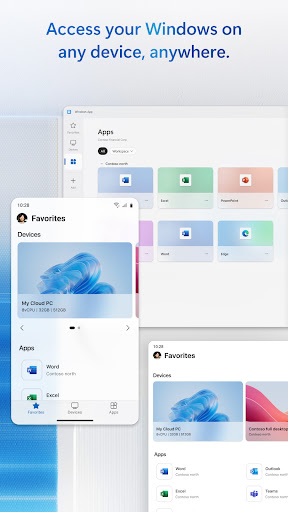
Windows App securely connects you to all remote Windows experiences, including Azure Virtual Desktop, Windows 365, Microsoft Dev Box, Remote Desktop Services, and remote PCs.
You can use Windows App on all supported Android devices running Android 11 and above: including tablets, smartphones, VR headsets and Chromebooks that support apps from the Play Store. Learn more about features and upcoming releases at aka.ms/WindowsApp

How to Download Windows App APK

  1. Enter the package name com.microsoft.rdc.androidx on the APK Downloader homepage.
  2. Select your device architecture (ARM64 recommended for modern devices).
  3. Click Download to get the merged APK file.
  4. Transfer and install the APK on your Android device.
  5. Keep Updated: Visit APK Downloader regularly to search for and download the latest secure versions of your favorite apps.

Security & Signature Verification

This APK download is 100% safe. We verify that the cryptographic signature of the file matches the official developer credentials. No modifications or adware are injected.

Location Special Access
  • approximate location (network-based)
  • precise location (GPS and network-based)
Photos/Media/Files Basic Access
  • read the contents of your USB storage
  • modify or delete the contents of your USB storage
Storage Basic Access
  • read the contents of your USB storage
  • modify or delete the contents of your USB storage
Camera Special Access
  • take pictures and videos
Microphone Special Access
  • record audio
Wi-Fi connection information Basic Access
  • view Wi-Fi connections
Other Basic Access
  • view network connections
  • pair with Bluetooth devices
  • full network access
  • change your audio settings
  • control Near Field Communication
  • run at startup
  • prevent device from sleeping