
مصادر التحميل
Device Configuration
دليل تثبيت حزم APK المجزأة (Split APKs)
يتم توزيع بعض التطبيقات كحزم APK مجزأة (ملفات .apk متعددة معاً) لتحسين الموارد. ولا يمكن لمثبت أندرويد القياسي فتحها.
التطبيقات ذات صلة



ما الجديد
Floating Feature bar
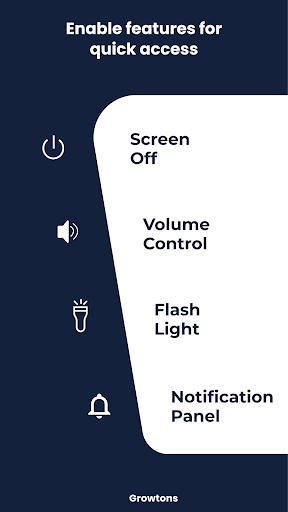
New features like Screenshot, Power Settings, etc. added
Minor UI updates
حول هذا التطبيق
Customize your Navigation Bar with a wide range of 250+ colors and 50+ icon designs for Back Button , Home Button and Recents Button. Also enjoy using Soft Keys for Power Button, Volume Button and flashlight button !
This app lets you define color for your Navigation Bar’s Background and its icons.
Also we have a wide collection of designs for the Navigation Bar icons. Try them all and choose the one which fits you the Best!
This app provides you with soft power button and soft volume button which preserves your device’s volume and power button. 😃
Working of this app:
1) Install our Quick Buttons Pro app and enable the accessibility service for this app.
Steps to Enable Accessibility service:
• Once installed, our app prompts you to enable accessibility service
• Clicking on enable takes you to your device’s accessibility settings.
• In this page, choose the Quick buttons App and enable accessibility service for the app.
2) Once accessibility service is Enabled, you will immediately see Navigation bar and feature bar being added to your screen.
3) Once you exit your accessibility settings page, you will be landed into the Quick Buttons Pro App where you can start configuring.
Customize your Navigation Bar:
1) In the Quick Buttons Pro Configure page, you can find an option to specify whether you want the Back Button on the left or right. Selecting an option brings the Back Button & Home Button to the desired positions.
2) To start customizing your Navigation Bar, click on the Customize Button.
3) You will be redirected to Customization Page, where you can make the following customizations:
🏆 Customizing Colors:🏆
• To customize colors, just click on the Colors option and you will be redirected to a page where you can customize colors. To update color for the Navigation Bar Background, just select the Background option from the Bottom Menu, and click on a color that you want to apply for the background. And that’s it, you will see the background color is applied to your Navigation Bar.
• Similarly to update the color of the Navigation Bar Icons and ripple, select the corresponding option from the bottom menu and click on the desired color.
🏆 Styling Navigation Bar Icons:🏆
• To change NavBar designs, just click on Icons option and you will be redirected to a page where you can choose the icons that you would love for your Navigation Bar.
• To select a particular icon design for your Navigation Bar, just click on the desired icon and the changes will apply instantly!
🏆 Advanced Settings🏆
By clicking on the advanced settings page, you may enable / disable the vibration effect for the NavBar icons and here you can also configure whether you want to hide/show the dock button
Customizing the Feature Bar:
In the Quick Buttons Pro configure page, within the feature bar section, you can select/unselect feature buttons that you would like to have on the feature Bar.
Show or Hide Navigation Bar:
If you want to hide navigation bar , just click on the dock button (right most button) provided in the navigation bar. In order to get back your navigation bar, tap or swipe from the bottom and your navigation bar will re appear.
Dock / Undock Feature Bar:
Similarly you can dock the feature bar by clicking the dock button (bottom most button) in the feature bar. This will dock the feature bar and will occupy minimum space on the screen. Clicking on the docked bar would reopen the feature bar.
Enjoy the app and do rate us if you liked the app 😎
NOTE: This app uses accessibility service for the sole purpose of providing navigation bar, power button, volume button and flash light features.
NOTE: For devices running in Android versions Oreo or below, an additional Device Admin permission may be required for the power button feature. However this permission is not mandatory if you do not wish to use the power button feature.
كيفية تنزيل APK QuickButtonsPro Navigation Bar
- أدخل اسم الحزمة
com.growtonspro.bottom.navigation.bar.power.button.home.button.back.button.flash.light.volume.buttonفي الصفحة الرئيسية لـ APK Downloader. - حدد بنية جهازك (يوصى بـ ARM64 للأجهزة الحديثة).
- انقر فوق تنزيل للحصول على ملف APK المدمج.
- قم بنقل وتثبيت APK على جهاز Android الخاص بك.
- ابقَ على اطلاع: قم بزيارة APK Downloader بانتظام للبحث عن أحدث الإصدارات الآمنة من تطبيقاتك المفضلة وتنزيلها.
الأمان والتحقق من التوقيع
تحميل ملف APK هذا آمن بنسبة 100٪. نحن نتحقق من أن التوقيع التشفيري للملف يطابق بيانات المطور الرسمية. لا توجد تعديلات أو إعلانات مدمجة.