


Download Sources
Device Configuration
Split APKs Installation Guide
Some apps are distributed as Split APKs (multiple .apk files packaged together) to optimize resources. Standard Android installers cannot open them.
What's New
We have made the following changes:
- Added a description of the save function
- Removed unnecessary items that were displayed in the student settings
About This App
This app only supports Chromebooks.
Epson Classroom Connect is designed for teachers using Chromebooks in their classrooms.
This app lets you:
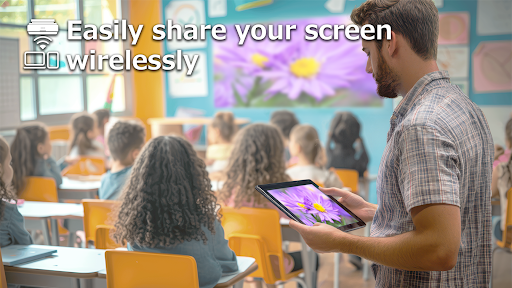
•Connect with a projector and share your device screen wirelessly.
•Connect your students' devices and project up to four device screens simultaneously to a projector.
When using the interactive pen*, you can also annotate projected image and save your annotations.
* Only available for Epson interactive projectors
[Key Features]
•Easily connect your device to the projector to share the screen and audio.
•Connect up to 50 devices and project from up to four simultaneously.
•Use the annotation toolbar shown on the projected screen to draw directly on projected images.*
•Save annotated images as PowerPoint files and edit the texts and shapes later.*
•Saved files are organized in one folder. You can edit the folder name.*
* Only available for Epson interactive projectors
[Notes]
For supported projectors, visit https://support.epson.net/projector_appinfo/classroom_connect/en/.
[About Screen Sharing Features]
•The Chrome extension “Epson Classroom Connect Extension” is required to share your Chromebook’s screen. Add it from the Chrome Web Store.
https://chromewebstore.google.com/detail/epson-classroom-connect-e/ekibidgggkbejpiaobjmfabmaeeeedcp
•While sharing your screen, video and audio may be delayed depending on the device and network specifications. Only unprotected content can be projected.
[Using the App]
Make sure that the network settings for the projector have been completed.
1. Switch the input source on the projector to "LAN". Network information is displayed.
2. Connect to the same network as the projector from "Settings" > "Wi-Fi" on your Chromebook.*1
3. Start Epson Classroom Connect and connect to the projector.*2
*1 If a DHCP server is being used on the network and the Chromebook's IP address is set to manual, the projector cannot be searched for automatically. Set the Chromebook's IP address to automatic.
*2 If you cannot connect to the projector using a connection code, you can also connect by scanning the QR code on the projected image or by entering an IP address.
[App Permissions]
To use the app, the following permissions are required.
・ Location information (Optional)
For searching for and connecting to the projector using a Simple AP connection.
・ Camera (Optional)
For capturing QR codes for connection or projecting camera images to the projector.
・ Recording (Optional)
For transferring device audio to the projector during mirroring projection.
・ Display over other apps (Optional)
For displaying specific UI at the forefront of your device during mirroring projection.
・ Notifications (Optional; Android 13 and later only)
For displaying notifications indicating connection or mirroring status.
* Optional permissions can be declined, but some features may not work.
We welcome any feedback you have that could help us to improve this app. You can contact us through "Developer contact". Please note that we cannot reply to individual inquiries. For inquiries regarding personal information, please contact your regional branch described in the Privacy Statement.
All images are examples and may differ from the actual screens.
Chromebook is a trademark of Google LLC.
QR code is a registered trademark of DENSO WAVE INCORPORATED in Japan and other countries.
How to Download Epson Classroom Connect APK
- Enter the package name
com.epson.projector.classroomconnecton the APK Downloader. - Select your device architecture (ARM64 recommended for modern devices).
- Click Download to get the merged APK file.
- Transfer and install the APK on your Android device.
- Keep Updated: Visit APKDER.COM regularly to search for and download the latest secure versions of your favorite apps.
Security & Signature Verification
This APK download is 100% safe. We verify that the cryptographic signature of the file matches the official developer credentials. No modifications or adware are injected.


